

Security on the internet has been a taboo topic, as everyone has an opinion about it, and a lot of people find it "cringe" or "too much" to take simple steps to encrypting your communication.
Personally, I don't really care about privacy or security for day to day things, like what games I play, or if I'm texting a friend to come over. But I will take privacy and security seriously when it comes to data about me or sending things that are "for their eyes" only. To continue the friend example, I will comfortably use Discord to send a message to a mate about pretty much anything, but the moment I need to send something extremely sensitive or something that could get me in trouble for sending it, I will switch to Signal.
This post isn't gonna be a rant about what everyone thinks on the internet about this topic, but rather to try and teach you about how I go about encrypting my communication whenever I need to.
So let's start with the simple stuff. The Signal messaging app.
Signal is an open-source, encrypted messaging service for instant messaging, voice calls, and video calls. Its focus is privacy and encryption first. It can be used online, on a desktop app but primarily on your phone.
Signal is free to use, you can grab it here: https://signal.org/download/
I won't go into too much depth on how Signal works, or how to get the best out of it, but if you wish to send messages or call a friend or anyone really securely and make sure you aren't been eavesdropped, it's a good start.
Signal is simple to use, though it requires you to have a phone number to register your device and such, but once that is done you are good to go. Make sure to add a Signal PIN so that SIM/phone number theft won't compromise your account. Taking additional steps to adding a lock pin for the app (from within the app it self and your own phone's OS) can improve the privacy and security of your account and who access your messages on the device it self.
Signal however is not the only app out there that offers such privacy features. Telegram (https://telegram.org/) is another known app for having some privacy and end-to-end encryption features integrated into the chatting experience.
However, Telegram does not offer an end-to-end encryption unless you are using a more hidden away mode called "secret chats". Even then, the end to end encryption they use has been under scrutiny, as it relies on the server to decide a few parameters, meaning a compromised Telegram server could potentially impact the encryption of these secret chats. The only encryption Telegram offers is the standard App to Server encryption all apps offer, meaning any employee or other party, such as a government, can see your messages.
If you are using Telegram for extremely sensitive conversations, you might want to consider transferring to Signal for a truly secure experience.
But what about e-mails?
e-mails? In 2025? Hell yeah! e-mails might be seen as an "old technology" by the younger generations today since its not Instagram or Messenger, but e-mail still remains one of the most prominent ways of sending text, photos or documents from one person to another via the internet, and it's usage has only been increases in the past years.
While e-mail is secure, the content of its can be snooped upon relatively easily by the company operating your e-mail server, or your ISP if they really wanted to. Of course, we can't forget someone potentially reading the contents of an e-mail or BCC (blind carbon copy - send the email to multiple people without them knowing who you sent it to)
The solution? GPG Encryption.
GPG, which stands for Gnu Privacy Guard, is a complete implantation of the OpenPGP standard for encryption. It allows for Asymmetric Encryption, meaning that the sender can use a public key (which we can publish and give out like candy!) to encrypt the data, and the receiver can use their private key (which as the name implies, only the receiver has) to decrypt the data.
Using GPG is nowadays a piece of cake, and allows us to send secure e-mails with a few clicks. This blog post will not cover all the details of the application, as the documentation for it (and the apps themself) are extremely self explanatory. If you want a full tutorial on this, let me know!
First and foremost, we will need to download GPG. You can get it here: https://www.gnupg.org/download/ (Scroll to the "GnuPG binary releases" section)
Do note that you are downloading compiled versions of GPG from other parties that are recommended by GnuPG. On Windows, GPG4Win is a great choice, while on Mac OS (what I will use for this blog) the Mac GPG app is excellent. If you are on Linux, your distro should come with GPG, and if not you can probably find instructions on it's documentation on how to get a pre-compiled version (or compile one your self!)
First, let's create a new key. Open the GPG Keychain app (or Kleopatra on Windows) and click on 'New'
You should get a prompt like the following:
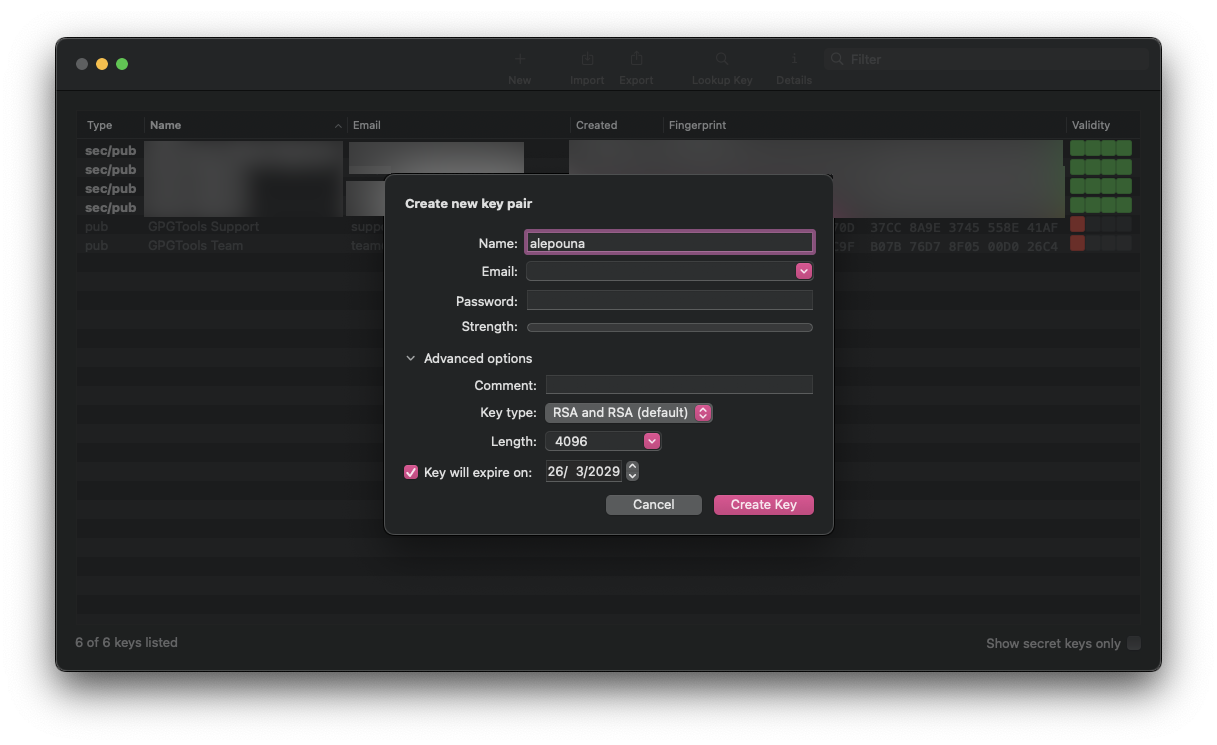
Fill in the details to match your information, so your name and the e-mail address. It's recommended to use the e-mail address you will be receiving and sending encrypted e-mails with, so that any users that wish to contact you can search up your key on public registries (we will talk about this later).
Enter a STRONG password. Make sure its not re-used between keys (or you use the same "prefix" and change it up a bit but don't make it too obvious). We want to use a password for our key, so that the private key is encrypted and nobody else but you can use it. The key is encrypted using symmetric encryption (AES specifically, typicall AES-128 or AES-256).
While a password is optional, as I mentioned before, adding a password ensures that your key can not be used by random actors, in the event it somehow gets leaked or exposed.
As for the key type, this is up to you, but for all intents and purposes, let's keep the default setting (RSA and RSA), as for the length, this depends on your needs, as you can imagine the higher the number, the more space the encrypted data will also take, but also improves the security a lot. For e-mails, using a high length is perfectly fine, but if you ever want to transfer data (e.g. in real time for a messaging app for example) you can safely use a lower length.
Do remember that RSA (and most means of encryption today) can be broken with quantum computers regardless of the bit length. Changing the bit length assumes additional security for our existing technology.
As for the expiration, this is up to you. The expiration date will not make the key suddenly disappear, or make the data you encrypted with begone, but rather show a warning (or block the operation) when trying to use an expired public key to encrypt, and GPG will prevent you from signing using an expired key. You can still decrypt with an expired (private) key, if you have the key around.
The expiration is merely an indicator for others (or yourself) to remember to rotate your keys and add additional security by encouraging a key rotation. You can easily renew an expired key.
Once you have created your key, you may be asked by the GPG software you are using if you'd like to upload your key to a public database. I strongly recommend doing so.
As the message on the prompt suggests, your e-mail address will not be public, and only one who knows and probes the database will know it's a valid database, since they will get your public key as a result.
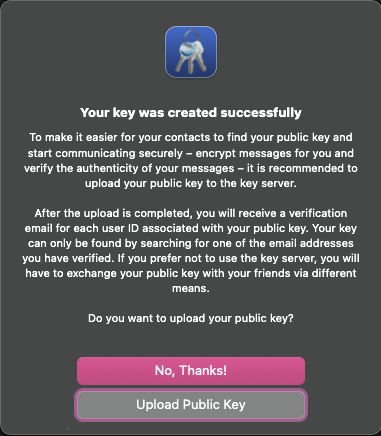
You can also optionally manually upload your key on databases of your choice, I personally use https://keys.openpgp.org/ for e-mails and upload my signing keys on https://pgp.mit.edu/ as well. There isn't any particular reason for using two databases, just having more visibility of your keys which increases the possibility of someone validating them when viewing content of mine.
At some point, I would like to run my own GPG Key server for my own public keys so I don't have to rotate them online, but that's a project for another day and completely optional.
Now that your key is made and uploaded, anyone in the world can start using it. You can inform your contacts that they can send you messages using your e-mail as the 'recipient' field or straight up give them your public key (or somewhere in a website for example) to use that instead.
But how can you send an encrypted file (and e-mail)?
On Windows (with Kleopatra) you will be able to quickly sign text or documents from within that client, but on MacOS unless you install extensions you will have to write commands. I much prefer the approach of commands as I know exactly how my key is used and which files I've signed/encrypted to then remove the originals. This of course also applies on Linux and Windows too, so if you want to use the terminal feel free to!
The process is extremely easily, let's assume we have a file at /tmp/hello.txt, we can then run the command gpg --encrypt --recipient "email" /tmp/hello.txt
This will create a file called "hello.txt.gpg" which only the recipient of your choice can decrypt.
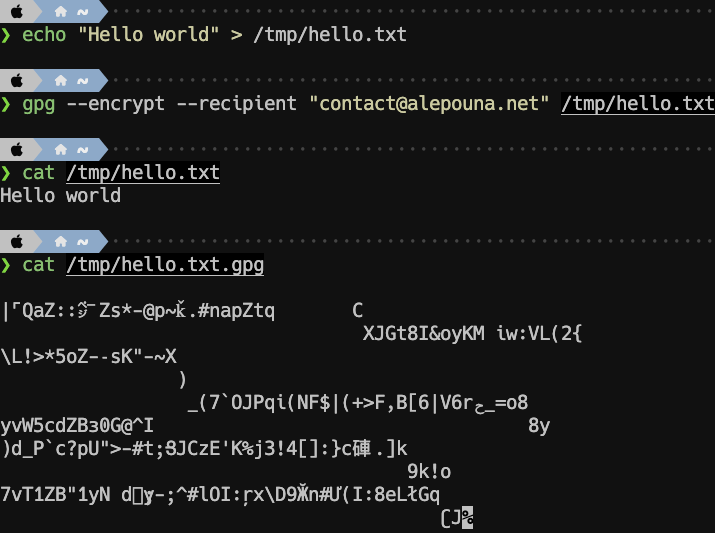
Now normally this would be fine, but for e-mails it's best we create an ASCII-armored file, as otherwise some e-mail servers may not send or receive the content due to potential malware filtering.
To do so, simple add the --armor flag on the previous command, so:gpg --armor --encrypt --recipient "email" /tmp/hello.txt
This will instead output the file as hello.txt.asc and as you can see it's much more readable than before.
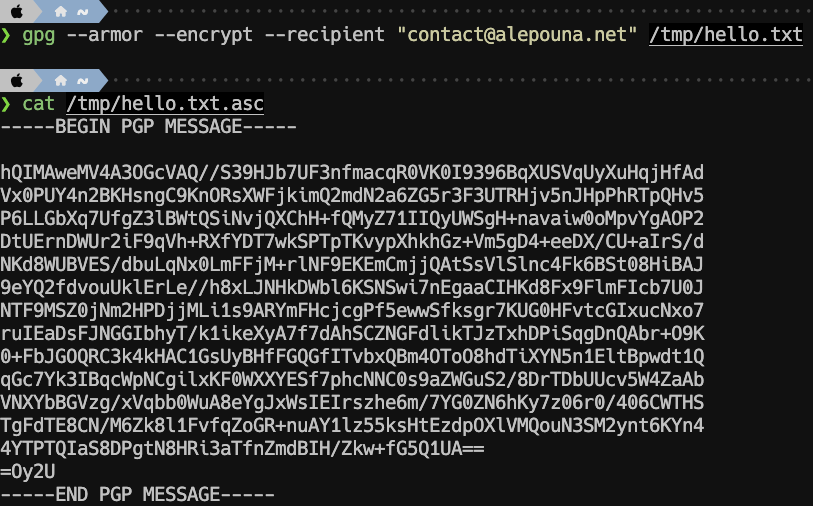
And that's it! You can now send the file as the e-mail body, or better yet as an attachment, and only the recipient (which in this case it's one of our public e-mails) will be able to decrypt it. This is where this guide will end. Depending on your operating system and your installed software, you might have available plugins that can hook to GPG and encrypt content on the go so you don't have to run commands or use the GPG UI and copy-paste things, but overall this process is pretty simple.
For the utmost security, you can also encrypt your private keys, and only use them on air gapped secured devices, such as devices running a Live ISO like Tails.
As I said in the beginning of this post, securing your communications is not trivial for day to day things, but when you need to securely tell someone something sensitive and important, you should know how to do it.
Arguing that you don't care about the right to privacy because you have nothing to hide is no different from saying you don't care about free speech because you have nothing to say.
– Edward Snowden
Some post notes (unrelated to the post it self):
This is my first tutorial-like post, and even then it scratches the surface of the possibilities and generally the tutorial-ism I could potentially write. I don't generally make tutorials as I am scared I will say something wrong, even though in my mind I know the correct answer, and I will get crucified about it. If you like the way I write, and would like more tutorials, especially for tech related stuff, please let me know with a comment <3